

Inserting shapes, tables, and media items
In this guide, you'll learn how to add shapes, tables, pictures, audio, and video to a slide in MobiSlides. These elements help you organize information and make your presentation clearer and more engaging. The steps start with Windows, followed by shorter sections for Mac, Android, and iOS.
Before you begin
Make sure you have:
MobiOffice installed on your device. See Installing MobiOffice on multiple devices.
A presentation open in MobiSlides. See Creating and editing presentations.
The image, audio, or video files you want to add saved on your device.
Insert a shape on Windows
1. Open the slide where you want the shape.
2. On the ribbon, choose the shape you want to add. Alternatively, you can click Insert > Shape.
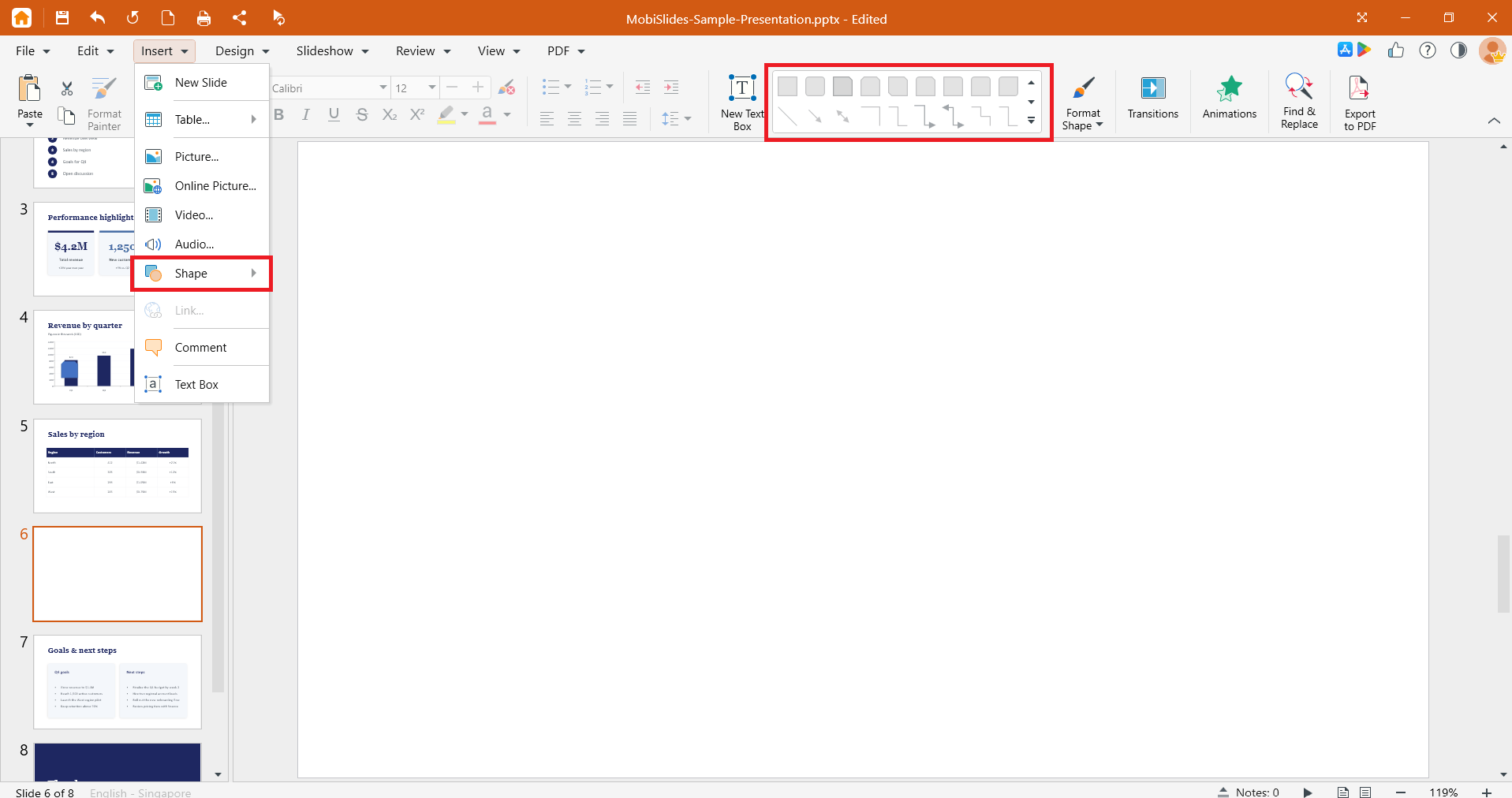
3. Select a shape from the gallery.
4. Drag on the slide to draw the shape at the size you want.
To change the look of a shape, right-click on the shape, then use the format options to set the fill color, outline, and effects.
Insert a table
1. Open the slide where you want the table.
2. On the Insert menu, click Table.
3. Set the number of rows and columns. Drag across the grid or enter the values.
4. Click a cell and type to add your content.
To add or remove rows and columns, right-click a cell and choose the option you need.
Insert a picture
1. Open the slide where you want the picture.
2. On the Insert menu, click Picture.
3. Browse to the image on your device and select it.
4. Click Open to add it to the slide.
To resize the picture, drag a corner handle. To move it, drag it to a new spot on the slide.
Insert audio or video
Note: Inserting audio and video is a Premium feature. Free plan users will see an upgrade prompt when they click Audio or Video in the Insert menu.
1. Open the slide where you want the media.
2. On the Insert menu, click Audio or Video.
3. Browse to the file on your device and select it.
4. Click Open to add it to the slide.
5. Click the playback control on the slide to preview it.
Tip: Use common formats such as MP4 for video and MP3 for audio so your media plays on other devices.
Resize, move, or delete an item
Resize: Select the item, then drag a corner handle.
Move: Select the item, then drag it to a new position.
Delete: Select the item and press Delete.
Layer items: Right-click an item and use the arrange options to bring it forward or send it backward.
Insert items on Mac
1. Open the slide where you want the item.
2. On the Insert menu, click Shape, Table, Picture, Audio, or Video.
3. Make your selection or browse to the file, then add it to the slide.
4. Resize and move items the same way as on Windows.
Insert items on Android and iOS
On phones and tablets, MobiSlides is part of the MobiOffice app.
1. Open your presentation in the MobiOffice app.
2. Tap the slide where you want the item.
3. Tap Shape then choose the item you want to add. Alternatively, you can tap Insert, then choose Table, Picture, Video, Audio, or Shape.
4. Select or browse to the item to add it.
5. Tap and drag the handles to resize or drag the item to move it.
Troubleshooting
My audio or video won't play. The format may not be supported. Convert the file to a common format, such as MP4 for video or MP3 for audio, and insert it again.
My media plays on this device but not after I share the file. Insert the media from a file saved on your device so it's added to the presentation, rather than linking to a file that may not exist on the other device.
My picture makes the file too large. Resize the picture on the slide, or use a smaller, compressed version of the image.
I can't select an item. It may be behind another object. Right-click the top object and send it backward or click the edge of the item you want.
My table content is cut off. Drag the table's border to make it larger or adjust the column widths to fit your text.


