

Adding Footnotes and Endnotes
In this guide, you'll learn how to add, edit, and delete footnotes and endnotes in MobiDocs. Use them to add sources, explanations, or extra details without interrupting the main text. This is useful for reports, academic papers, and legal documents. The steps start with Windows, followed by shorter sections for Mac, Android, and iOS.
Before you begin
Make sure you have:
MobiOffice installed on your device. See Installing MobiOffice on multiple devices.
You're signed in to MobiDocs. See Signing in to MobiDocs.
A document open in MobiDocs. See Creating and editing documents.
Footnotes and endnotes at a glance
Both types of notes link a reference mark in your text to a note elsewhere in the document. The difference is where the note appears:
Add a footnote
1. Click where you want the reference mark to appear, usually right after a word or at the end of a sentence.
2. Go to the Insert tab.
3. Click Footnote. MobiDocs adds a reference mark in your text and a matching mark at the bottom of the page.
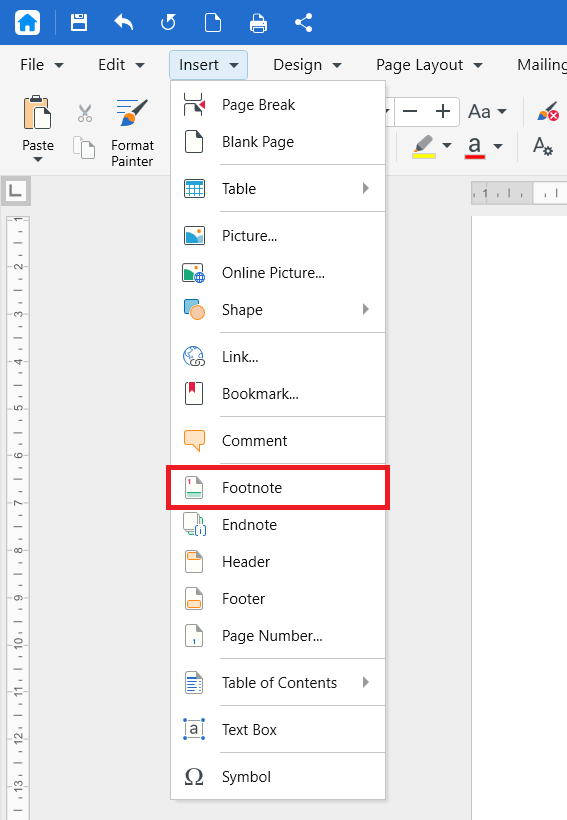
4. Type your footnote text.
To return to your place in the document, double-click the number next to your footnote text.
Add an endnote
1. Click where you want the reference mark to appear.
2. Go to the Insert tab.
3. Click Endnote. MobiDocs adds a reference mark in your text and a matching mark at the end of the document.
4. Type your endnote text.
To return to your place in the document, double-click the endnote mark.
Edit a footnote or endnote
1. Scroll to the note at the bottom of the page or the end of the document.
2. Click inside the note text.
3. Make your changes.
You can format note text the same way as other text, using bold, italic, or links. See Formatting text and paragraphs.
Delete a footnote or endnote
1. Select the reference mark in the main text.
2. Press Delete.
MobiDocs removes the note and renumbers the remaining notes automatically.
Note: Deleting only the note text at the bottom of the page doesn't remove the reference mark. Always delete the mark in the main text.
Add footnotes and endnotes on Mac
1. Open your document in MobiDocs.
2. Click where you want the reference mark to appear.
3. In the ribbon, click Insert, then click Footnote or Endnote.
4. Type your note text.
Add footnotes and endnotes on Android and iOS
On phones and tablets, MobiDocs is part of the MobiOffice app.
1. Open your document in the MobiOffice app.
2. Tap Edit. Tap where you want the reference mark to appear.
3. Tap Insert from the tabs menu.
4. Tap Footnote or Endnote.
5. Type your note text.
Troubleshooting
The Footnote and Endnote options are greyed out. Click inside the main text of the document first. If the document opened in read-only mode, switch to editing mode.
I deleted a note, but the number is still in my text. You deleted the note text instead of the reference mark. Select the reference mark in the main text and press Delete.
My notes are numbered out of order. MobiDocs numbers notes by their position in the document. If you moved text, the numbers update to match the new order.
My endnotes appear at the end of a section, not the document. Your document may contain section breaks. See Setting up custom page layouts.
Where to go next
You now know how to add and manage footnotes and endnotes. Try one of these next:


