

Printing Envelopes and Labels
In this guide, you'll learn how to create envelopes and sheets of labels in MobiDocs, then print them. This is useful for posting invoices, sending cards, or labelling files and packages. Envelopes are added to the document you already have open, while labels open in a new file. These steps apply to MobiDocs on Windows.
Before you begin
Make sure you have:
MobiOffice installed on your device. See Installing MobiOffice on multiple devices.
A document open in MobiDocs. See Creating and editing documents.
A printer connected and switched on.
Envelopes or label sheets loaded in your printer.
Create an envelope
1. Open your document in MobiDocs.
2. In the ribbon, click Mailings.
3. Click Envelopes.
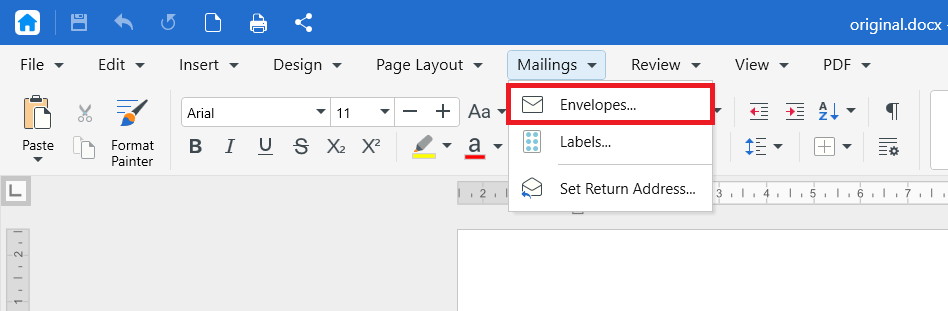
4. Set up the envelope. You can choose the envelope size, set where the delivery and return addresses go, and add or edit the return address.
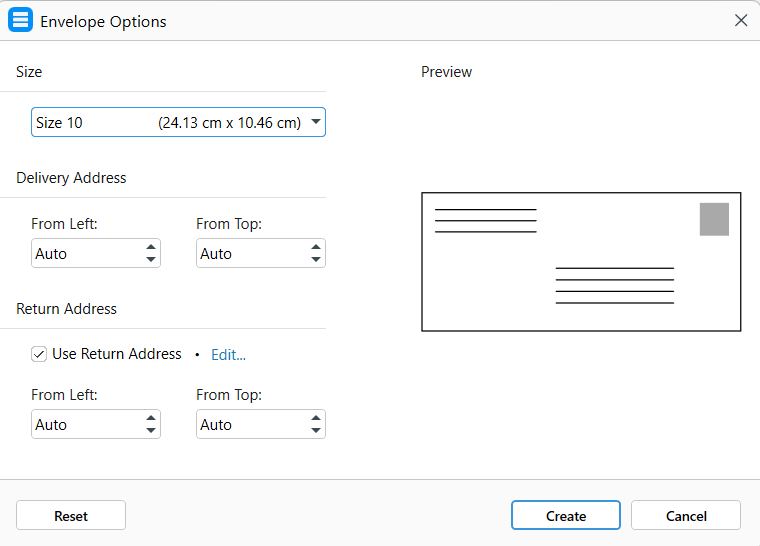
5. Click Create.
The envelope is added to your document.
If you added an envelope to an existing document, choose Pages and enter only the envelope’s page, so the rest of the document doesn’t print on your envelopes.
Create a sheet of labels
1. Open your document in MobiDocs.
2. In the ribbon, click Mailings.
3. Click Labels.
4. Adjust the label settings. You can choose your printer type, pick the label product, set how the page is laid out, add or edit the return address, and preview the result.
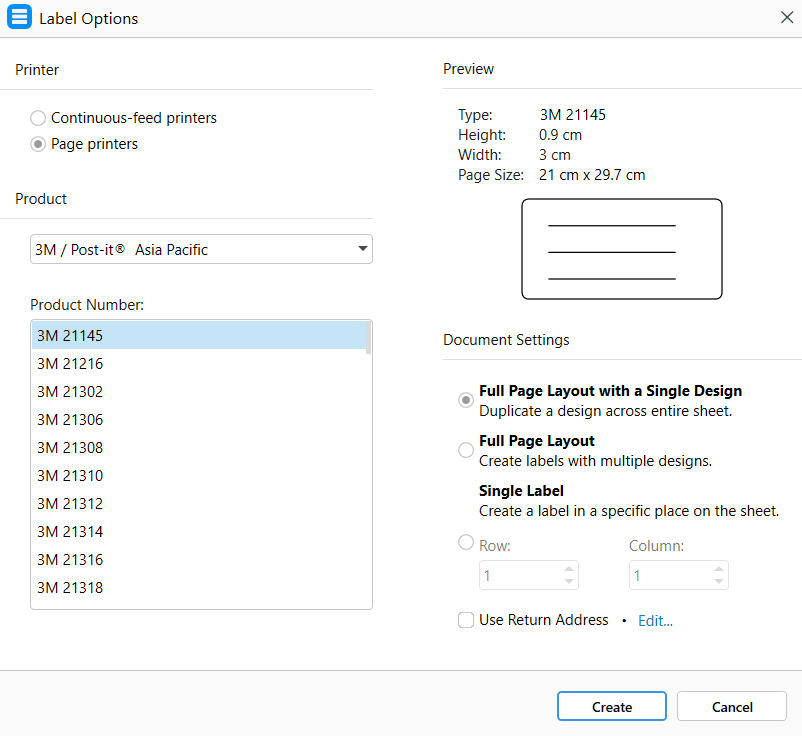
5. Click Create.
A new file opens containing your labels. Your original document stays open and unchanged.
Print your envelope or labels
Once your envelope or label sheet is ready, print it from the same place you print any document.
1. Click File.
2. Click Print.
3. Under Printer, select the printer you want to use.
4. Under Number of Copies, enter how many you need.
5. Choose what to print:
All to print everything.
Pages to print a range, such as 1-3.
6. Check the preview pane to see how the page will print.
7. Click Print.
Tip: To save your envelope or labels as a PDF instead, select Microsoft Print to PDF in the printer list, then click Print.
Troubleshooting
The Mailings option is greyed out. Click inside the document first. If the document opened in read-only mode, switch to editing mode.
My labels opened in a different file. That's expected. Labels always open in a new file so your original document isn't changed. Both files stay open, and you can switch between them.
The text prints in the wrong place on the envelope. Check that the paper size in your print settings matches the envelope you loaded. Also check your printer's manual on which way to feed envelopes, since this varies between printers.
My labels don't line up with the sheet. Print one test page on plain paper first and hold it against a label sheet. Adjust the label settings before you print on the real sheets.
Nothing prints. Check that the correct printer is selected under Printer and that the printer is switched on and has paper loaded.
Where to go next
You now know how to create and print envelopes and labels. Try one of these next:


