Advanced data management and export tools
In this guide, you’ll use the advanced tools in MobiSheets to find and select data quickly, fill sequences, and link cells to other files. You’ll also export your spreadsheet to PDF so you can share it. These tools save time on large spreadsheets and make sharing easier. The steps start with Windows, followed by shorter sections for Android and iOS.
Before you begin
Make sure you have:
MobiOffice installed on your device. See Installing MobiOffice on multiple devices.
A spreadsheet with data open in MobiSheets. See Creating and editing spreadsheets.
Signed in to MobiSheets. See Signing in to MobiSheets.
An internet connection, if you want to save to the cloud or link to a file in MobiDrive.
Manage data on Windows and Mac
Find, replace, or go to a cell
1. Open your spreadsheet in MobiSheets.
2. Click the Edit menu, then click Find & Select.
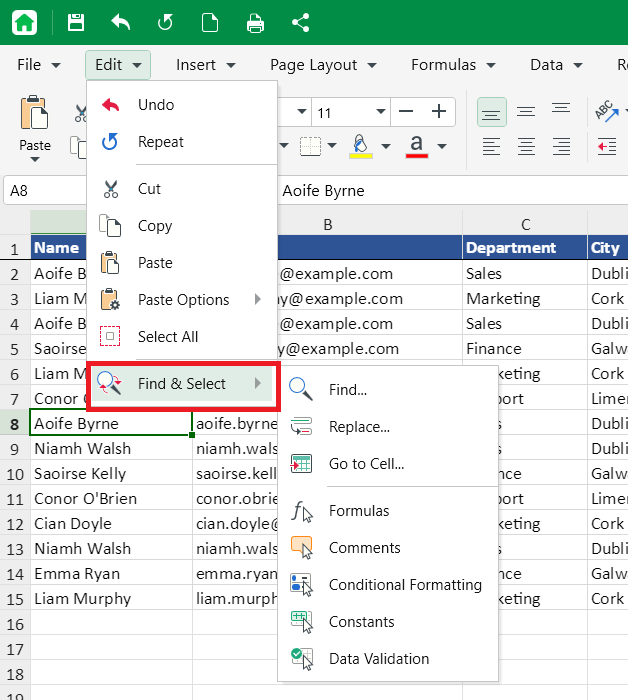
3. Choose an option:
Find to search for text, numbers, or symbols.
Replace to change a word or value everywhere it appears.
Go to Cell to jump to a cell or range by entering its address, such as B12.
Select cells by type
You can select all cells of one type at once by selecting specific commands in MobiSheets. For example, you can select every cell that contains a formula and check them in one pass.
1. Open the Edit dropdown menu and click Find & Select.
2. Choose what to select:
Formulas selects cells that contain formulas.
Comments selects cells that have comments.
Conditional Formatting selects cells that have conditional formatting rules.
Constants selects cells with fixed values instead of formula results.
Data Validation selects cells that have data validation rules.
Fill a number sequence
1. Type the first two values of the sequence in two cells, such as 1 and 2.
2. Select both cells.
3. Drag fill handle (the small square) in the bottom-right in the corner of the selection down or across.
MobiSheets continues the sequence. If you start with only one number, MobiSheets copies that number into every cell.
Group and outline data
Grouping lets you collapse related rows or columns, so you only see the parts you need. For example, you can group each month’s daily sales rows, then collapse them so only the monthly totals show.
1. Select the rows or columns you want to group.
2. Open the Data dropdown menu.
3. Click Group.
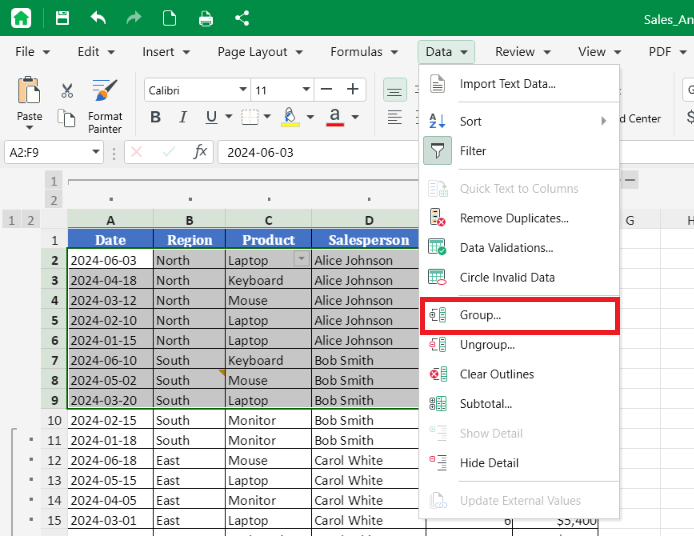
4. Choose Rows or Columns, then confirm.
Collapse or expand a group
1. Select a cell inside the group.
2. Open the Data dropdown menu.
3. Choose an option:
Hide Detail collapses the group.
Show Detail expands the group again.
Ungroup rows or columns
1. Select the grouped rows or columns.
2. Open the Data dropdown menu.
3. Click Ungroup.
4. Choose Rows or Columns, then confirm.
5. Alternatively, you can select Data > Clear Outlines.
Add subtotals
Subtotal groups your data by category and adds a total row under each group. For example, you can add a sales total for each region in one step.
Before you start, sort your data by the column you want to group by. Subtotals are added each time the value in that column changes, so unsorted data gives you many small groups.
1. Select a cell inside your data. Make sure the data has a header row.
2. Open the Data dropdown menu.
3. Click Subtotal. The Subtotal window opens.
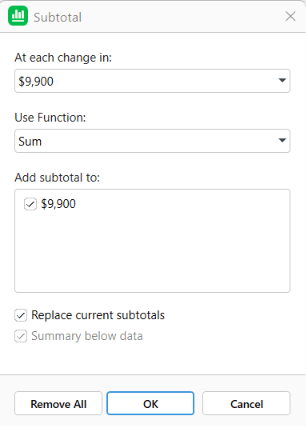
4. In the window, choose the settings for the Subtotal:
At each change in: Choose the column to group by
Use Function: Choose which function to use such as Sum, Count, or Average
Add subtotal to: Select the columns to total
Replace current subtotals if there are any
Summary below data puts each subtotal row below its group
5. Click OK. A row for the Grand Total is automatically added below the table.
6. To remove all subtotals, click Data > Subtotal, then click Remove All.
MobiSheets adds a subtotal row under each group. It also groups the data, so you can collapse each group with Hide Detail to show only the totals.
Link a cell to a file
You can add a link in a cell that opens a file on your computer or in MobiDrive.
To link to a file on your computer:
1. In File Explorer, right-click the file and choose Copy as path.
2. In MobiSheets, right-click the cell and choose Link. You can also click Insert > Link....
3. In Text to display, enter the text you want to show in the cell.
4. Paste the file path into Web address, remove the quotation marks around it, then click OK.
To link to a file in MobiDrive:
1. Upload the file to MobiDrive.
2. Click the file and choose Share.
3. Click Copy Link, then click Close.
4. In MobiSheets, right-click the cell and choose Link.
5. Enter the Text to display, paste the link into Web address, then click OK.
Export to PDF
Note: Export to PDF is a Premium feature. On the Free plan, MobiSheets prompts you to upgrade.
1. On the MobiSheets ribbon, click Export to PDF. Alternatively, you can click on the PDF menu and choose Export to PDF.

2. Choose where to save the file, then click Save.
Manage and export data on Android and iOS
On Android and iOS, spreadsheets open in the MobiOffice app.
Find and replace
1. Open your spreadsheet in MobiOffice.
2. Tap the Edit icon.
3. Tap the tabs menu, then tap Home.
4. Tap Find & Replace.
5. Type the text you want to find in Find what and the new text in Replace with.
6. Tap Replace to replace the text. Tap All to replace every match.
Group or ungroup rows and columns
Grouping keeps related rows or columns together.
1. Open the spreadsheet and tap the tabs dropdown menu.
2. Go to the Data tab.
3. Tap Group.
4. Choose Rows or Columns.
To ungroup, tap Ungroup, then choose Rows, Columns, or Clear Outline.
Export to PDF
1. Open the spreadsheet.
2. Open the tabs dropdown menu, tap File, then tap Export to PDF.
3. Adjust the page settings if needed, then tap Export to PDF.
The PDF opens so you can check it.
Troubleshooting
Fill copied the same number into every cell. Click the AutoFill Options button and choose Fill Series, or start with two values, such as 1 and 2, so MobiSheets can see the pattern.
Fill didn’t continue my text. MobiSheets fills number sequences, not text.
The file link doesn’t open. The file may have moved or been renamed. Copy the new path and edit the link.
My subtotals are split into many small groups. Sort the data by the column you’re grouping by, then add the subtotals again.