Applying custom cell styles and view settings
In this guide, you’ll change how your cells look and how you see your spreadsheet in MobiSheets. You’ll apply cell styles and custom number formats, choose how negative numbers appear, and change view settings such as frozen rows and hidden columns. This makes large spreadsheets easier to read and work with. The steps start with Windows and Mac, followed by a shorter section for Android and iOS.
Before you begin
Make sure you have:
MobiOffice installed on your device. See Installing MobiOffice on multiple devices.
A spreadsheet with data open in MobiSheets. See Creating and editing spreadsheets.
Signed in to MobiSheets. See Signing in to MobiSheets.
An internet connection, if you want to save to the cloud.
Apply custom cell styles on Windows and Mac
Apply a cell style
A cell style applies a ready-made combination of font, color, and fill in one click.
1. Select the cell or range you want to style.
2. Click the Cell Styles dropdown menu from the ribbon.
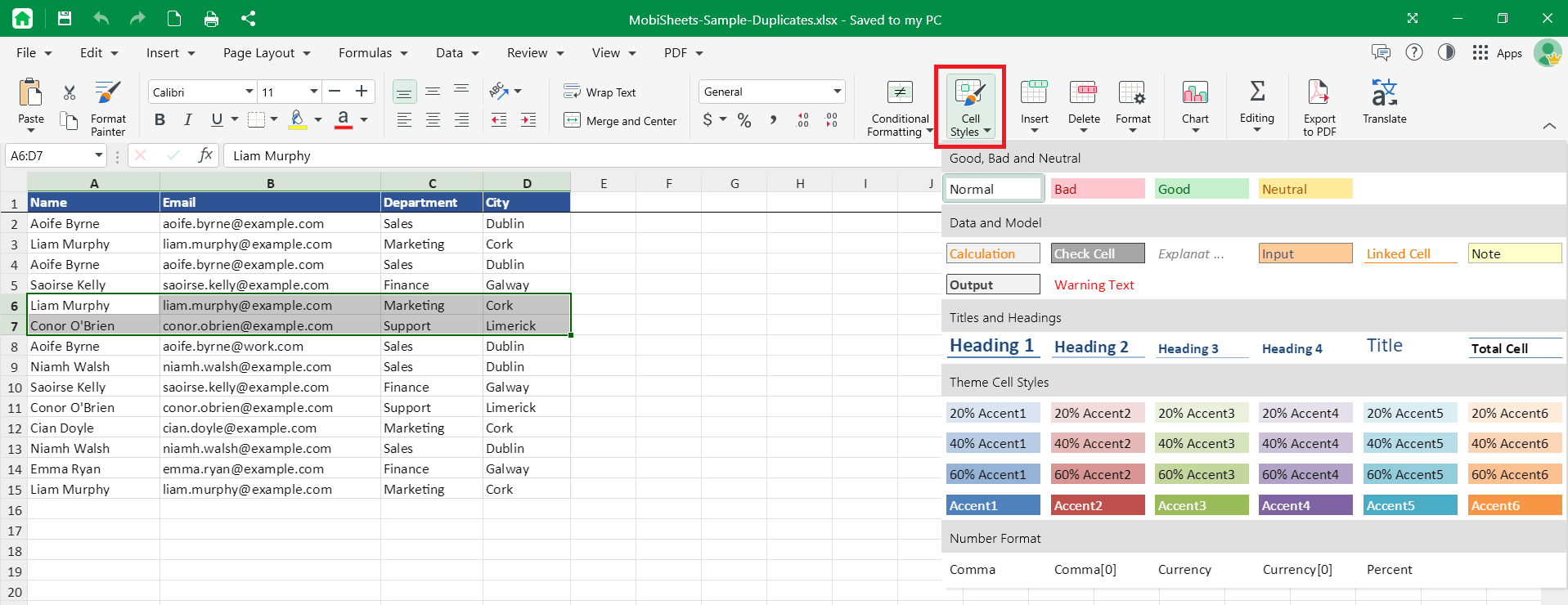
3. Choose a style.
Apply a custom number format
Use a custom number format when none of the built-in formats fit your data.
1. Select the cell or range.
2. In the ribbon, click Format then choose Format Cells. Alternatively, you can right-click and select Format Cells from the context menu.
3. On the Number tab, click Custom.
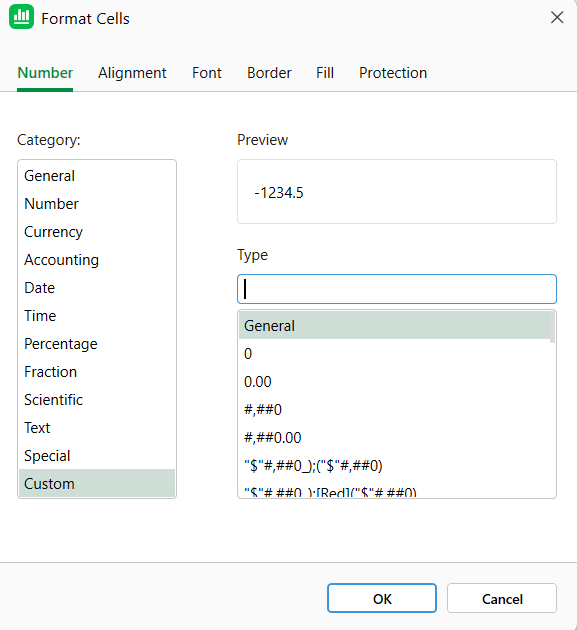
4. Type the format you want, then click OK.
The next time you open the Custom list, your format appears at the bottom.
Change how negative numbers are displayed
1. Select the cells that contain negative numbers.
2. Right-click and select Format Cells.
3. On the Number tab, choose how to show negative numbers:
With a minus sign
In red
In parentheses
4. Click OK.
Change view settings
Freeze a row or column
Freezing keeps a row or column visible as you scroll.
1. Select the row just below the row you want to keep in view. For a column, select the column just to the right of it.
2. Open the View dropdown menu.
3. Click Freeze.
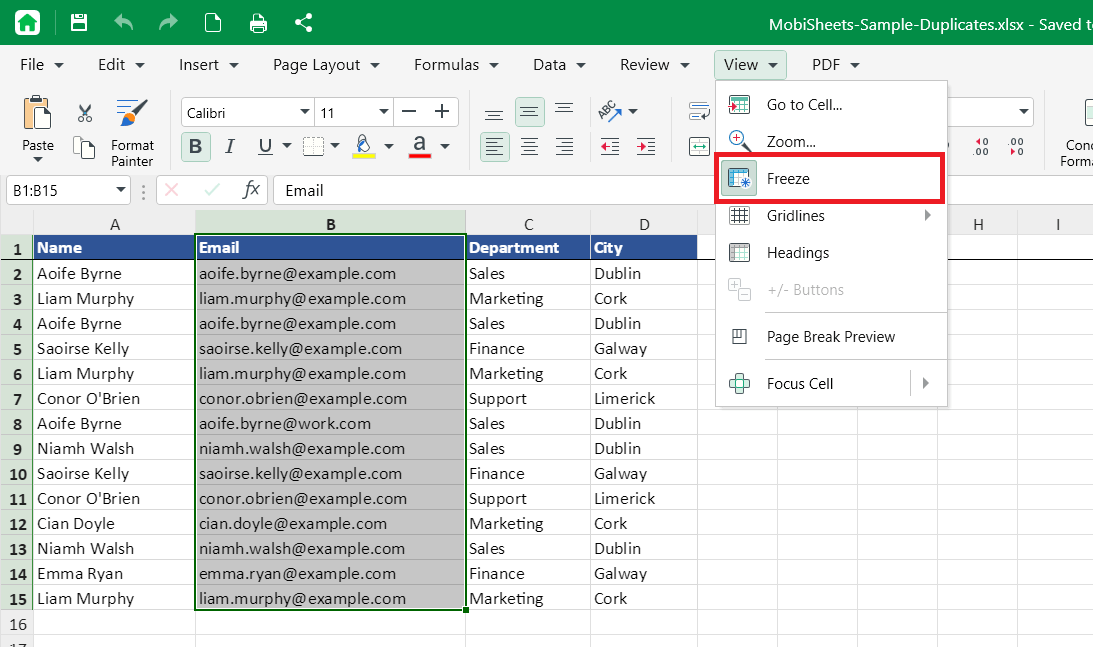
To unfreeze, open the View dropdown menu and click Freeze again.
Hide or show rows and columns
1. Right-click the row number or column letter.
2. Select Hide.
A small red arrow marks where the row or column is hidden. To show it again, right-click and select Unhide.
Hide or show a sheet
1. Right-click the sheet tab at the bottom of the window.
2. Click Hide.
To show a hidden sheet, right-click a sheet tab and click Unhide.
Highlight cells with Focus Cell
Focus Cell highlights the row and column of the cell you’ve selected, so you can follow your data across a large spreadsheet. It helps when you read or edit long rows of data.
1. Open the View dropdown menu.
2. Click Focus Cell.
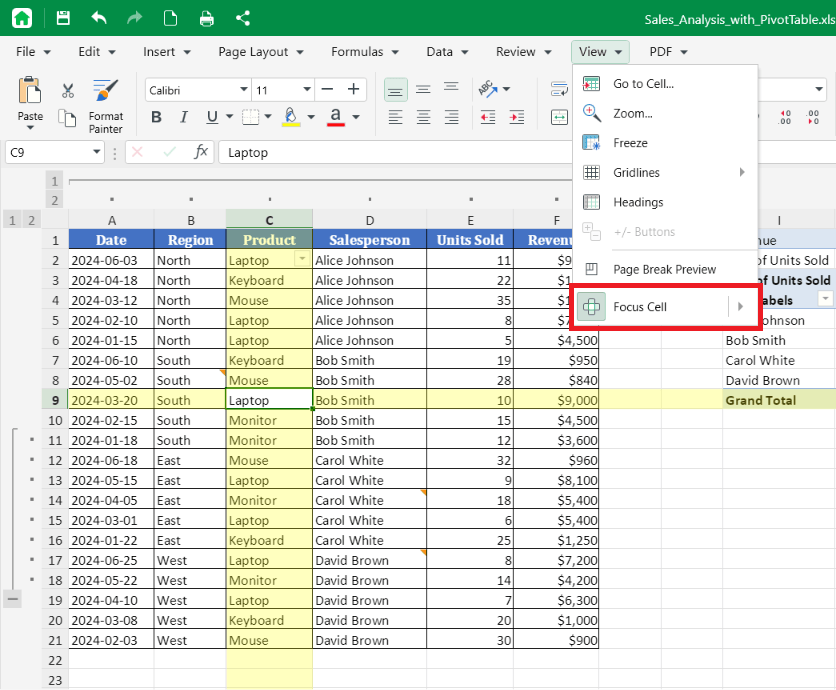
The selected cell is highlighted. As you move to another cell, the highlight moves with it.
To turn it off, open the View dropdown menu and click Focus Cell again.
Change the unit of measurement
The unit of measurement is used for settings such as column width and margins.
1. Open the File tab.
2. Open Settings, then go to the General Preferences tab.
3. Choose a unit from the dropdown list.
MobiSheets saves the change automatically.
Cell styles and view settings on Android and iOS
On phones and tablets, MobiSheets is part of the MobiOffice app.
Change how negative numbers are displayed
1. Select the cells that contain negative numbers.
2. Open the Home menu and tap Format.
3. Tap Number Formatting, then select Number.
4. Choose a style: parentheses, red, or a minus sign.
5. Close the Number Formatting menu to apply the change.
Freeze or unfreeze a row or column
1. Select the row just below the row you want to keep in view. For a column, select the column just to the right of it.
2. Open the View tab and swipe the toolbar to see more options.
3. Tap Freeze. To unfreeze, tap Unfreeze.
Use the View tab options
The View tab on iOS has more settings for how your spreadsheet is displayed:
Zoom switches to a preset zoom level.
Go to Cell jumps to a cell you enter.
Hide Gridlines turns the cell gridlines on or off.
Hide Headings turns the row numbers and column letters on or off.
Hide Formula Bar hides or unhides the formula bar.
Sheets shows all the sheets available.
View a spreadsheet in full screen
1. Open the spreadsheet in MobiOffice.
2. Tap Edit.
3. Open the Home menu and choose View.
4. Tap Hide Formula Bar.
5. Tap Reading mode.
Troubleshooting
The wrong rows froze. Freeze locks everything above the row you selected. Unfreeze, select the row just below your headers, and freeze again.
I can’t find a hidden column. Look for the small red arrow between the column letters. Right-click there and select Unhide.
My negative numbers still show a minus sign. Check that you selected the cells before you opened Format Cells, then choose the style again.
My custom number format doesn’t apply to a formula cell. Cells that contain a formula may not accept a custom number format in the same way as plain numbers. Try a built-in format instead.